
|
IMPORTANT NOTICE
Information provided by Deputy is intended for general guidance purposes only and is not a substitute for professional legal or financial advice. Deputy does not accept liability for actions taken based on this information. |
This article shows you where to enter an interim super fund Member number (“0”) when a new hire is joining your business’s default super fund but has not yet been assigned a member number.
Before you read
- Target audience: This article is for System Administrators and users responsible for managing payroll.
- Plan restrictions: This article is for users with Deputy Payroll (AU).
This article covers
- When to use "0" for the Member number
- Where to add "0" for the Member number
- Updating the employee's Member number once received
- FAQs
When to use "0" for the Member number
Customers with Deputy HR
Use "0" as the Member number when:
- the employee has selected the business’s default super fund during Deputy HR onboarding, or
- you are choosing the default super fund on the employee’s behalf after completing the required ATO process for offering employees a choice of super fund.
The typical process is as follows:
- The employee selects your default super fund during Deputy HR paperless onboarding.
- A Member Registration Request (MRR) is sent to the default fund automatically via SuperAPI. The member number may not be available immediately.
While waiting for the member number to be generated, you'll need to go to the employee profile in the People tab and enter "0" as the Member Number as an interim value. This allows the employee’s first super contribution to be submitted while the official member number syncs back via SuperAPI.
- Note: This may trigger a second MRR for the employee via Beam, however the super fund will generally recognize this is a duplicate request.
- Tip: If you're processing the first contribution while waiting for the member number to be assigned, we suggest refreshing the employee's profile (Payroll details) to check whether it has been received.
When the default super fund returns the official member number, check whether it has flowed through to Deputy Payroll and replaced the “0” member number. See the FAQs section for where to find this.
Important note: Make sure to follow the required ATO protocol if you're an administrator entering the default fund where your employees don't choose a fund, or aren't eligible to choose one. See the ATO's guide on Setting up super for your business.
Customers who do not have Deputy HR
Use "0" as the Member number when:
- the employee has chosen the business’s default super fund, or
- you are choosing the default super fund on the employee’s behalf after completing the required ATO process for offering employees a choice of super fund.
The typical process is as follows:
- The employee is offered a choice of super fund through processes managed by your organization, outside of Deputy. In this case, you'll need to actively follow up with your employee or the super fund for their official member number.
- While waiting for the member number to be provided, you'll need to go to the employee profile in the People tab and enter "0" as the Member Number as an interim value. This allows the employee’s first super contribution to be submitted even if your employee has not yet provided the member number.
- You'll need to obtain the official member number directly from the employee or the fund. Once received, you should manually update the Member number in the People tab before the next contribution. If you don't replace the "0" with the actual member number, the future contributions may fail.
After you manually update the member number, check whether it has flowed through to Deputy Payroll and replaced the “0” member number. See the FAQs section for where to find this.
Important note: Make sure to follow the ATO protocol if you are an administrator entering the default fund where your employees don't choose a fund, or aren't eligible to choose one. See the ATO's guide on Setting up super for your business.
Where to enter "0" for the Member number
1. Open the People tab and select the team member's profile.
2. Select Payroll from the left-hand side menu, then click Edit for the Superannuation section.
3. Review the eligibility prompt, then select your business's default fund using the search bar and drop-down menu.
4. In the Member Number field, enter "0".
5. Click Save changes.
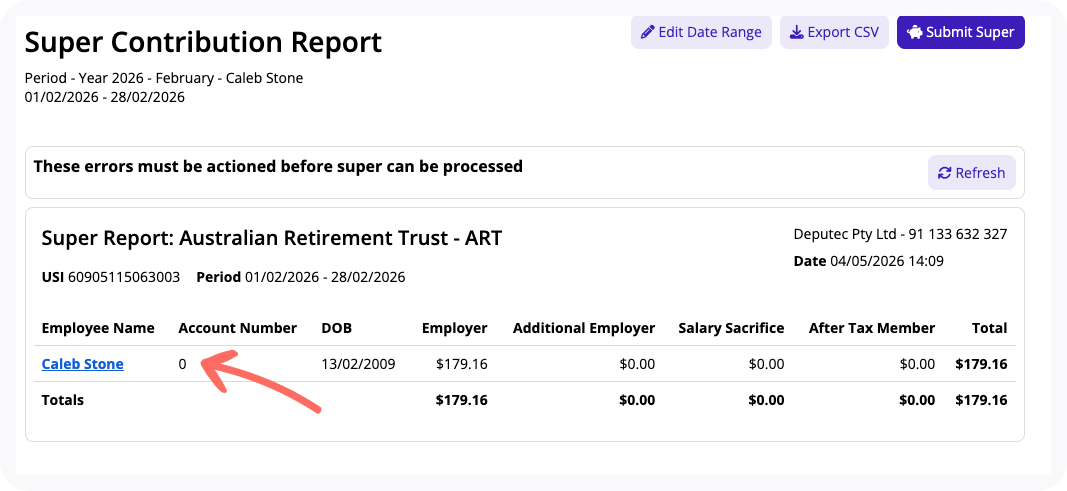
Note: Super contribution reports will display "0" for the team member until the fund provides the new account details.
Updating the Member number once received
|
This step is only required for users without Deputy HR. If you use Deputy HR and have completed the steps above, the member number should flow through to Deputy from SuperAPI. |
Once the employee has provided their member number, you should update these details in Deputy as soon as possible to avoid delayed or failed super contribution payments.
You should obtain the new member number directly from the team member, then update the details in the same section you initially entered "0".
1. Open the People tab and select the team member's profile.
2. Select Payroll from the left-hand side menu, then click Edit for the Superannuation section.
3. Navigate to the Member number field and replace the "0" with the correct member number provided by your employee.
5. Click Save changes.
FAQs
Where would the "0" appear in Deputy Payroll?
If you enter the interim Member number, the "0" appears in the Account Number column of the employee's Super Contribution Report.
Where can I learn more about the required ATO processes for default super funds?
Visit the ATO's guide on Setting up super for your business.